
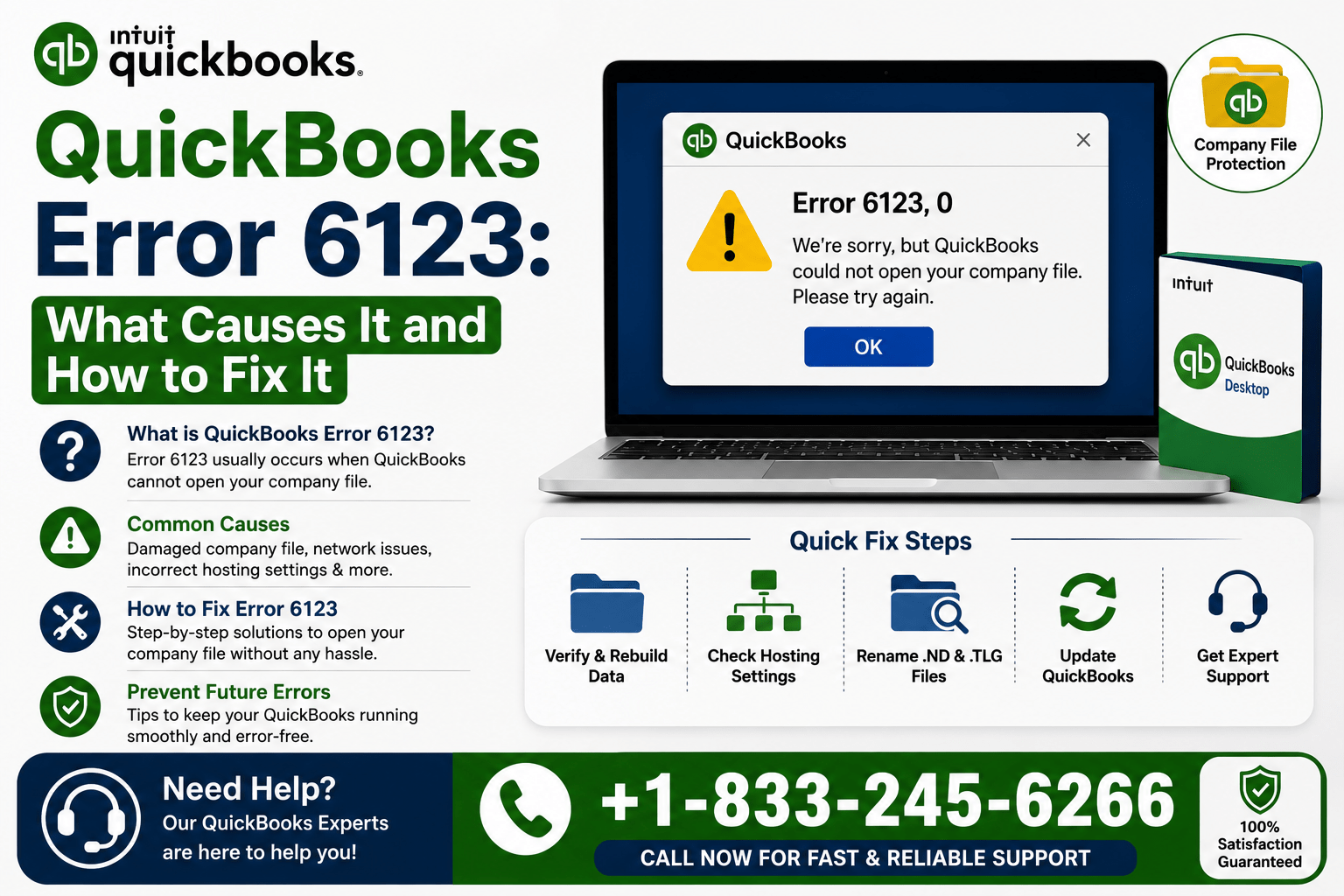
If you’ve ever tried to open, restore, or upgrade a company file in QuickBooks Desktop and been stopped in your tracks by Error 6123, you’re not alone. This is one of the more common company file errors, and it almost always points to a connectivity or file-access problem between QuickBooks and your data file — especially in multi-user or hosted environments.
What Is QuickBooks Error 6123?
Error 6123 typically appears as “QuickBooks is unable to communicate with the server or your company file could not be found” or a similar variant like QuickBooks Error 6123, 0. It shows up when QuickBooks can’t establish a stable connection to the company file (.QBW), whether that file lives on a local drive, a network share, or a hosted server.
It most commonly occurs during three scenarios:
- Opening a company file stored on a different computer or server
- Restoring a company file from a backup (.QBB)
- Updating or converting a file to a newer QuickBooks version
Common Causes
- QuickBooks Database Server Manager isn’t running or isn’t properly configured on the host computer
- Damage or corruption in the company file itself
- Firewall or antivirus software blocking QuickBooks communication ports
- Incorrect network configuration or a mapped network drive instead of a UNC path
- Company file name or folder path contains special characters or is too long
- Multiple copies of QuickBooks installed, causing version conflicts
- Damaged Network Data (.ND) file
How to Fix QuickBooks Error 6123
1. Run the QuickBooks File Doctor
Download and run the QuickBooks Tool Hub, then use QuickBooks File Doctor to scan for and repair company file and network issues automatically. This resolves a large share of QuickBooks Error 6123 cases without any manual troubleshooting.
2. Confirm the Database Server Manager Is Running
On the computer hosting the company file, open the QuickBooks Database Server Manager and verify it’s actively scanning the folder containing your .QBW file. Restart the service if it appears stopped.
3. Rename the .ND File
Locate the company file folder, find the file with a .ND extension matching your company file name, and rename it (e.g., add “old” to the end). QuickBooks will regenerate a fresh one the next time it opens the file.
4. Check Firewall and Security Software
Make sure your firewall isn’t blocking QuickBooks-related processes (QBDBMgrN.exe, QBCFMonitorService.exe) or the ports QuickBooks uses for multi-user access. Temporarily disabling third-party antivirus can help confirm whether it’s the culprit.
5. Move the Company File Locally and Reopen
As a test, copy the company file to the local hard drive of the workstation and try opening it directly. If it opens without issue, the problem is network-related rather than file corruption.
6. Use a UNC Path Instead of a Mapped Drive
Mapped drive letters (like Z:) can behave inconsistently across a network. Try browsing to the company file using its full UNC path (\ServerNameSharedFolderCompanyFile.qbw) instead.
When to Call in a Professional
If you’ve worked through these steps and Error 6123 persists, it may point to deeper company file damage or a more complex network configuration issue. At that point, it’s worth having a QuickBooks ProAdvisor take a look before repeated attempts risk further file corruption.
Our team at QB Enterprise Advisors works with businesses every day to resolve QuickBooks errors like this one, restore corrupted company files, and set up reliable multi-user and hosted environments so these issues don’t keep coming back.
Need Help Resolving QuickBooks Error 6123?
If your team is stuck on QuickBooks Error 6123 or any other QuickBooks company file issue, reach out to us for hands-on support — we’ll get your file back up and running and help you avoid a repeat.