
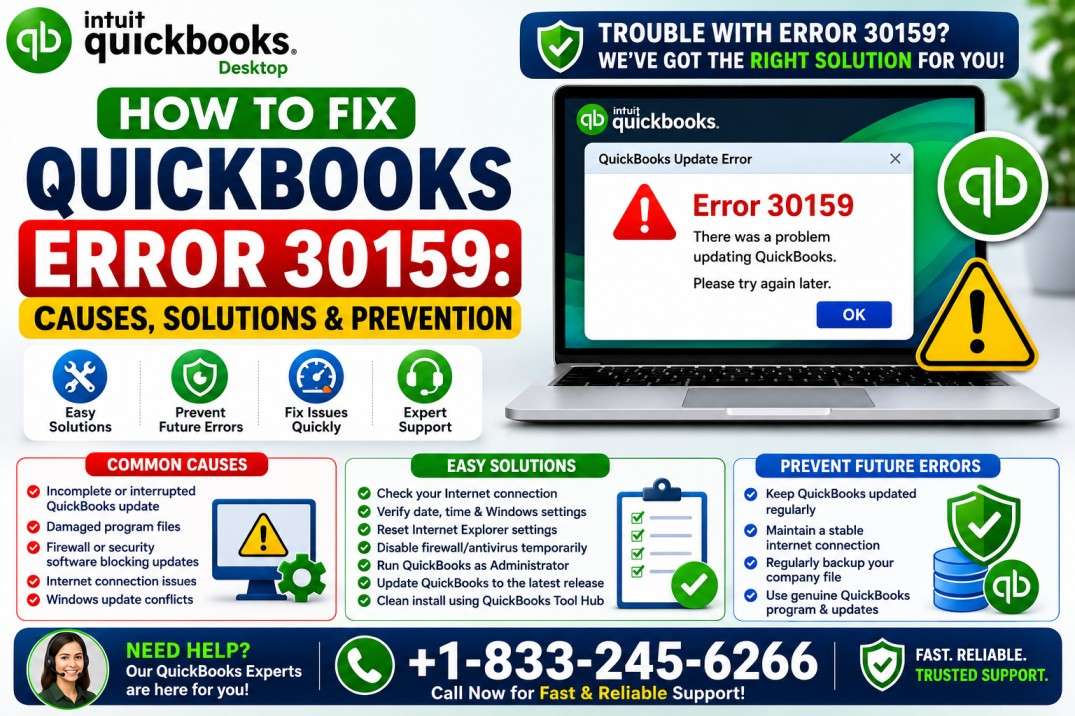
QuickBooks Desktop is a popular accounting solution for managing bookkeeping, payroll, taxes, and other financial activities. However, technical problems can occasionally interrupt your workflow. QuickBooks Error 30159 is a payroll-related error that may appear when QuickBooks has difficulty verifying your payroll subscription or processing payroll information.
The error can prevent you from completing payroll tasks and may display a message indicating that the payroll entitlement is enabled but the entitlement unit is deactivated.
Several issues can trigger this error, including an inactive payroll subscription, incorrect Employer Identification Number (EIN), damaged payroll configuration files, an incorrect service key, outdated QuickBooks software, or company-file data problems.
This guide from QB Enterprise Advisors explains the possible causes of QuickBooks Error 30159 and provides practical troubleshooting steps.
What Is QuickBooks Error 30159?
QuickBooks Error 30159 is generally associated with QuickBooks Desktop Payroll. It can occur when the software cannot properly verify or access your payroll subscription information.
Users may encounter the error while:
- Processing payroll.
- Downloading payroll updates.
- Updating payroll tax tables.
- Activating or reactivating payroll.
- Verifying a payroll subscription.
- Working with payroll-related company information.
One possible message associated with the error is:
Error 30159: Unable to load account for PSID null. Entitlement is enabled, but entitlement unit is deactivated.
The exact message may vary depending on your QuickBooks version and payroll configuration.
What Causes QuickBooks Error 30159?
There can be several reasons for this payroll error. Common causes include:
- Your QuickBooks Payroll subscription is inactive or expired.
- The payroll service key is incorrect.
- The Employer Identification Number (EIN) is missing or incorrect.
- The Payroll Subscription ID (PSID) information is incorrect.
- The
paysub.inifile is damaged. - QuickBooks company-file data is damaged.
- QuickBooks Desktop is outdated.
- Your Windows operating system is outdated or incompatible.
- Multiple payroll agreements are associated with the company file.
- An inactive direct deposit agreement is interfering with payroll services.
- Payroll billing information needs to be updated.
- QuickBooks program files are damaged.
- Network or security settings are preventing QuickBooks from communicating with payroll services.
Identifying the cause is important because changing payroll settings unnecessarily can create additional problems.
Symptoms of QuickBooks Error 30159
You may notice one or more of these symptoms when Error 30159 occurs:
- QuickBooks displays Error 30159.
- Payroll processing fails.
- Payroll updates cannot be downloaded.
- QuickBooks cannot verify your payroll subscription.
- The payroll service appears inactive.
- QuickBooks displays an EIN or service-key-related warning.
- Payroll tax-table updates fail.
- QuickBooks becomes unresponsive while processing payroll.
- You cannot access certain payroll functions.
If the error occurs repeatedly, note the exact payroll task you were performing when it appeared. This can help determine where the problem originates.
Things to Do Before Troubleshooting
Before changing payroll settings or modifying QuickBooks files, protect your company data.
We recommend that you:
- Create a current backup of your QuickBooks company file.
- Make sure you have administrator access to Windows.
- Verify that your internet connection is stable.
- Keep your QuickBooks product and license information available.
- Avoid changing your EIN or payroll service key unless you have the correct information.
- Close QuickBooks before modifying configuration files.
Once your company file is backed up, proceed with the solutions below.
How to Fix QuickBooks Error 30159
Solution 1: Check Your Payroll Subscription Status
An inactive payroll subscription is one of the first things to check when Error 30159 appears.
You can review your payroll service from QuickBooks Desktop.
- Open QuickBooks Desktop.
- Open your company file.
- Go to Employees.
- Select My Payroll Service.
- Choose Account/Billing Information.
- Sign in to your Intuit account if requested.
- Review the payroll service status.
If your subscription is inactive, follow the available instructions to reactivate it.
Intuit’s payroll account information identifies whether a payroll service is active or inactive; an inactive service can prevent payroll activities from working normally.
After reactivating the service, restart QuickBooks and try the payroll operation again.
Solution 2: Verify Your Payroll Service Key
An incorrect or damaged payroll service key can prevent QuickBooks from connecting your company file to the correct payroll subscription.
To review the service key:
- Open QuickBooks.
- Select Employees.
- Choose My Payroll Service.
- Select Manage Service Keys.
- Review the payroll service listed.
- Check its status.
If the service key is incorrect, enter the correct key associated with your payroll subscription.
Be careful when changing service-key information. If you’re unsure which key belongs to your company, contact your payroll provider or a QuickBooks professional before making changes.
Solution 3: Check the Employer Identification Number
Your company’s Employer Identification Number (EIN) is an important part of your payroll setup.
If the EIN stored in QuickBooks does not match your payroll information, subscription verification may fail.
Review your company and payroll settings and confirm that the EIN is accurate.
If the information is incorrect, update it using the appropriate QuickBooks payroll settings.
Because an EIN is sensitive business information, do not share it publicly.
Solution 4: Rename the Paysub.ini File
The paysub.ini file stores payroll subscription-related information. If this file becomes damaged, QuickBooks may have trouble verifying your payroll service.
Renaming the file allows QuickBooks to create a new copy.
Follow these steps:
- Close QuickBooks Desktop.
- Open File Explorer.
- Search for
paysub.ini. - If necessary, enable the display of hidden files and folders.
- Locate the file.
- Right-click
paysub.ini. - Select Rename.
- Change the extension from
.inito.old. - Save the change.
- Open QuickBooks again.
- Check your payroll subscription and try the payroll operation.
If you’re unable to locate the file or are unsure which file to modify, don’t delete random QuickBooks files. Get professional assistance instead.
Solution 5: Update QuickBooks Desktop
An outdated QuickBooks installation can create compatibility problems with payroll services.
To update QuickBooks:
- Open QuickBooks Desktop.
- Select Help.
- Choose Update QuickBooks Desktop.
- Open the Update Now tab.
- Select Get Updates.
- Wait for the update to finish.
- Restart QuickBooks.
After updating, try downloading the latest payroll tax table or processing payroll again.
Keeping QuickBooks updated is also important for maintaining compatibility with supported payroll services.
Solution 6: Download the Latest Payroll Tax Table
If Error 30159 appears during a payroll update, make sure your payroll tax table is current.
Open QuickBooks and go to the payroll-update area to check for available updates.
Download and install the latest available tax table, then restart QuickBooks and try the payroll operation again.
Intuit recommends installing the latest tax table as one of the troubleshooting steps for certain QuickBooks payroll connection problems.
Solution 7: Check Your Computer’s Date and Time
Incorrect system date, time, or time-zone settings can interfere with QuickBooks payroll connections.
To check your Windows settings:
- Open Windows Settings.
- Select Time & Language.
- Open Date & Time.
- Verify the date and time.
- Confirm the correct time zone is selected.
- Enable automatic time synchronization if appropriate.
- Restart your computer.
Then open QuickBooks and try the payroll operation again.
Incorrect system date and time are among the conditions Intuit identifies as possible causes of payroll connection problems.
Solution 8: Check Your Internet Connection
QuickBooks Payroll requires a reliable internet connection for certain online services and updates.
Check your connection by opening several websites in a browser.
If the connection is unstable:
- Restart your router.
- Reconnect to your network.
- Try a more reliable connection.
- Contact your network administrator if you’re using a business network.
A network timeout or general internet connection problem can prevent QuickBooks Desktop from reaching payroll services.
Solution 9: Review Firewall and Antivirus Settings
Firewall and antivirus software can sometimes interfere with QuickBooks’ ability to communicate with online services.
Review your security software and confirm that QuickBooks is allowed through the firewall.
If your company uses managed network security, ask your IT administrator to check whether QuickBooks connections are being blocked.
Do not permanently disable your security software. If you temporarily disable protection for troubleshooting, enable it again as soon as testing is complete.
Solution 10: Verify and Rebuild QuickBooks Company Data
Company-file data damage can affect payroll and other QuickBooks operations.
Use the Verify Data utility to check your company file:
- Open QuickBooks Desktop.
- Select File.
- Choose Utilities.
- Select Verify Data.
- Allow QuickBooks to complete the process.
If QuickBooks identifies a data problem, create a backup and use Rebuild Data when appropriate.
Once the rebuild is complete, run Verify Data again to check whether the issue has been corrected.
Solution 11: Run QuickBooks as an Administrator
Windows permissions may interfere with certain QuickBooks operations.
Try running QuickBooks with administrator privileges:
- Close QuickBooks.
- Right-click the QuickBooks Desktop icon.
- Select Run as administrator.
- Click Yes when Windows asks for permission.
- Open your company file.
- Try processing payroll again.
If the problem disappears, Windows permissions may have contributed to the issue.
Solution 12: Check for Multiple Payroll Agreements
If multiple payroll agreements are associated with your QuickBooks setup, subscription validation may become confusing.
Open your payroll service settings and review the available payroll agreements.
Look for:
- Multiple payroll subscriptions.
- Inactive payroll agreements.
- Old direct deposit services.
- Services associated with another company file.
Don’t remove or deactivate a payroll service unless you know that it is no longer required. If you’re uncertain, contact a QuickBooks professional.
Solution 13: Update Your Windows Operating System
Outdated Windows components can contribute to compatibility problems.
To check for updates:
- Open Windows Settings.
- Go to Windows Update.
- Select Check for updates.
- Install available updates.
- Restart your computer.
- Open QuickBooks again.
Make sure your QuickBooks version is supported on your Windows environment before making major operating-system changes.
Solution 14: Use QuickBooks Tool Hub
QuickBooks Tool Hub provides utilities that can help diagnose and repair several common QuickBooks Desktop problems.
Install the current version of QuickBooks Tool Hub and select the troubleshooting utility that matches your problem.
After completing the repair:
- Restart the computer if requested.
- Open QuickBooks.
- Open your company file.
- Check your payroll subscription.
- Try processing payroll again.
Solution 15: Repair the QuickBooks Installation
If QuickBooks program files are damaged, repairing the installation may help.
To repair QuickBooks:
- Close QuickBooks.
- Open the Windows Control Panel.
- Select Programs and Features.
- Locate QuickBooks Desktop.
- Select the available Repair or Change option.
- Follow the instructions.
- Restart the computer.
- Open QuickBooks and test payroll again.
If the repair doesn’t resolve the error, a clean installation may be required.
Solution 16: Reinstall QuickBooks Desktop
If QuickBooks remains damaged after repair, reinstalling the application can replace problematic program components.
Before uninstalling QuickBooks:
- Back up your company files.
- Keep your product and license information available.
- Make sure you know which QuickBooks version you need.
- Close QuickBooks and other related applications.
After reinstalling QuickBooks:
- Activate the application.
- Install the latest updates.
- Open your company file.
- Verify the payroll service.
- Download the latest payroll updates.
- Test payroll processing.
If you’re uncomfortable performing a clean installation, professional assistance can help avoid unnecessary configuration problems.
How to Prevent QuickBooks Error 30159
You can reduce the likelihood of recurring payroll errors by maintaining your QuickBooks environment.
Follow these best practices:
- Keep QuickBooks Desktop updated.
- Keep Windows updated.
- Maintain an active payroll subscription.
- Verify your payroll service information.
- Keep your EIN information accurate.
- Back up your company file regularly.
- Maintain a stable internet connection.
- Configure firewall and antivirus software correctly.
- Download payroll tax-table updates regularly.
- Avoid interrupting payroll updates.
- Use a supported QuickBooks and Windows configuration.
When Should You Contact a QuickBooks Expert?
If Error 30159 continues after completing the troubleshooting steps, the issue may involve payroll entitlement information, a damaged company file, an incorrect service key, or a more complicated QuickBooks installation problem.
Payroll contains sensitive employee and financial information, so repeatedly changing payroll settings without knowing the underlying cause can create additional issues.
A QuickBooks professional can help determine whether the problem is related to your subscription, company file, payroll configuration, network, or QuickBooks installation.
Get Help With QuickBooks Error 30159
QuickBooks Error 30159 can interrupt payroll processing and prevent QuickBooks Desktop from properly validating your payroll service. Checking the subscription status, EIN, service key, payroll files, QuickBooks updates, and company-file health can help resolve the issue.
If you’ve tried the troubleshooting steps and the error continues, QB Enterprise Advisors can help.
Call QB Enterprise Advisors at 833-245-6266 for professional assistance with QuickBooks Error 30159 and other QuickBooks payroll problems.
Frequently Asked Questions
What is QuickBooks Error 30159?
QuickBooks Error 30159 is a payroll-related error that can occur when QuickBooks Desktop has difficulty verifying payroll subscription or entitlement information.
What causes QuickBooks Error 30159?
The error can be caused by an inactive payroll subscription, incorrect EIN or service key, damaged paysub.ini file, outdated QuickBooks software, company-file damage, Windows compatibility issues, or payroll configuration problems.
Can an inactive payroll subscription cause Error 30159?
Yes. QuickBooks may be unable to process payroll properly if the associated payroll service is inactive or cannot be verified.
Can an incorrect EIN trigger QuickBooks Error 30159?
Yes. Incorrect or missing EIN information can interfere with payroll subscription verification.
What is the purpose of the paysub.ini file?
The paysub.ini file contains payroll subscription-related information used by QuickBooks Desktop. If the file becomes damaged, renaming it can allow QuickBooks to create a fresh copy.
Can updating QuickBooks fix Error 30159?
Updating QuickBooks can help if outdated software is contributing to the problem. It is recommended to keep QuickBooks and payroll tax tables current.
Can Windows cause QuickBooks Error 30159?
Yes. An outdated or incompatible Windows environment can contribute to QuickBooks compatibility problems.
How can I get help with QuickBooks Error 30159?
If the error remains after troubleshooting, contact QB Enterprise Advisors at 833-245-6266 for assistance with QuickBooks Desktop Payroll and Error 30159.