
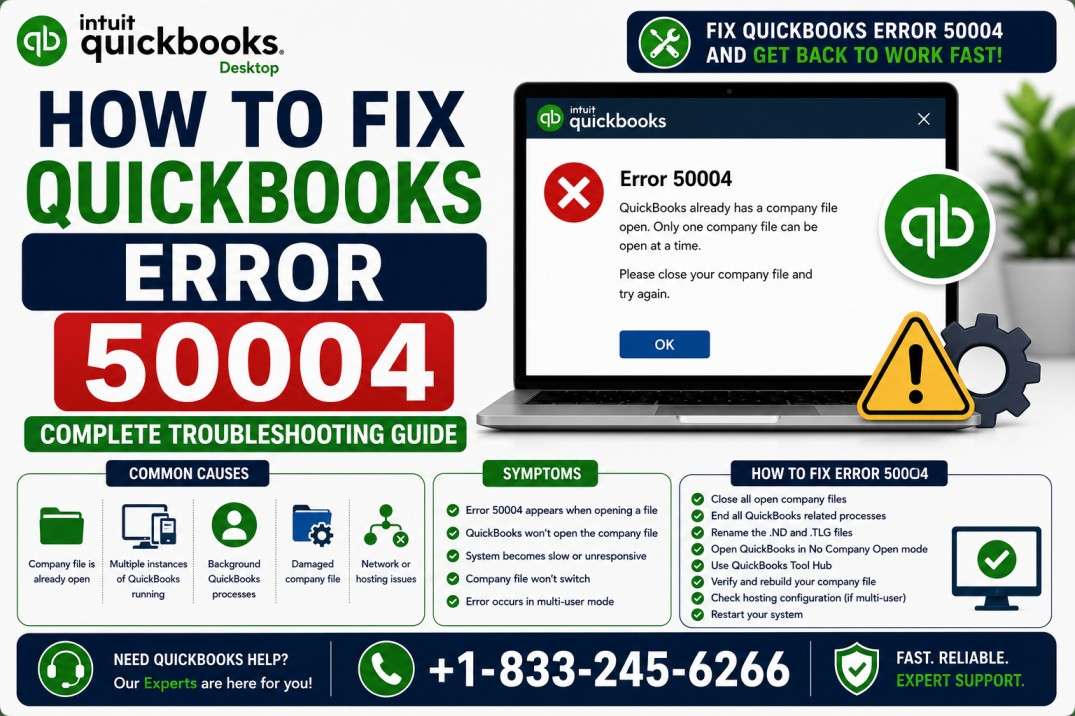
QuickBooks Desktop helps businesses manage payroll, employee payments, and direct deposit efficiently. However, users may sometimes encounter QuickBooks Error 50004 when setting up, activating, or sending direct deposit payments.
This error can prevent payroll tasks from being completed and may be caused by QuickBooks configuration issues, outdated software, incorrect system settings, damaged company data, or problems with the QuickBooks installation.
If you’re facing QuickBooks Error 50004, this guide from QB Enterprise Advisors explains the common causes and troubleshooting methods you can use to resolve the problem.
What Is QuickBooks Error 50004?
QuickBooks Error 50004 is commonly associated with QuickBooks Desktop payroll and direct deposit functions. It may appear when you attempt to activate direct deposit, set up an employee for direct deposit, or send a direct deposit payment.
When the error occurs, QuickBooks may prevent you from completing the payroll-related task.
What Causes QuickBooks Error 50004?
Several issues can trigger Error 50004 in QuickBooks Desktop, including:
- QuickBooks is running in an incorrect operating mode when processing direct deposits.
- Incorrect date or time settings in Windows.
- Connectivity problems between QuickBooks and its online services.
- Firewall or security software interfering with QuickBooks.
- Outdated QuickBooks Desktop or Windows.
- Damaged or corrupted QuickBooks installation files.
- Problems with company-file data.
- Incorrect payroll or direct deposit configuration.
- Issues with individual paycheck details.
Identifying the cause can help you choose the most appropriate solution.
How to Fix QuickBooks Error 50004
Try the following solutions one at a time. Before making significant changes to your company file, create a backup of your QuickBooks data.
Solution 1: Run QuickBooks as an Administrator
Running QuickBooks with administrator privileges can help when Windows permissions are preventing payroll or direct deposit functions from working correctly.
- Close QuickBooks Desktop.
- Search for QuickBooks from the Windows Start menu.
- Right-click QuickBooks Desktop.
- Select Run as administrator.
- Choose Yes if Windows asks for permission.
- Open your company file.
- Try accessing the direct deposit or payroll function again.
If the error disappears, permission restrictions may have been contributing to the problem.
Solution 2: Verify and Rebuild QuickBooks Company Data
Company-file data problems can sometimes interfere with payroll operations. QuickBooks includes built-in tools that can check the integrity of your company data.
To verify your data:
- Open QuickBooks Desktop.
- Select File.
- Choose Utilities.
- Select Verify Data.
- Allow QuickBooks to complete the scan.
If QuickBooks reports that your data has integrity issues, use the Rebuild Data utility.
Before rebuilding the file:
- Create a backup when prompted.
- Start the Rebuild Data process.
- Wait until the process finishes.
- Open Verify Data again afterward.
- Confirm whether the data problems have been resolved.
Do not interrupt QuickBooks while the rebuild process is running.
Solution 3: Check Your Internet Connection
Direct deposit and other online QuickBooks services require a reliable internet connection.
If your connection is unstable:
- Restart your router or network connection.
- Check whether other websites load normally.
- Avoid using a weak or intermittent connection.
- Contact your network administrator if you’re working on a business network.
Once your connection is stable, restart QuickBooks and try the direct deposit operation again.
Solution 4: Review Firewall and Security Settings
Firewall and antivirus software may sometimes block QuickBooks from connecting to required online services.
Review your security software and ensure that QuickBooks Desktop is permitted to communicate through your network.
If you’re using a business firewall or managed network, your IT administrator may need to review the configuration.
Do not leave your firewall or antivirus protection disabled. If security software is temporarily disabled for testing, enable it again immediately afterward.
Solution 5: Update QuickBooks Desktop
Using an outdated version of QuickBooks can lead to compatibility and payroll problems.
To check for QuickBooks updates:
- Open QuickBooks Desktop.
- Select Help.
- Click Update QuickBooks Desktop.
- Open the Update Now tab.
- Select Get Updates.
- Restart QuickBooks after the update is complete.
- Try the direct deposit operation again.
You should also keep Windows updated to help maintain compatibility with QuickBooks Desktop.
Solution 6: Check Your Computer’s Date and Time
Incorrect Windows date and time settings can interfere with connections to online services.
To check these settings:
- Open Windows Settings.
- Go to Time & Language.
- Check the date, time, and time-zone settings.
- Enable automatic time synchronization when appropriate.
- Restart QuickBooks.
Then try activating or sending the direct deposit again.
Solution 7: Review Direct Deposit Setup
If Error 50004 occurs while setting up direct deposit for an employee, review the employee’s payroll and banking information carefully.
Make sure:
- The employee is correctly set up for direct deposit.
- Required banking information is accurate.
- Your payroll subscription and direct deposit service are active.
- The correct administrator credentials are being used.
- You are following the appropriate authorization process.
Avoid entering or changing sensitive banking information unless you are certain the information is correct.
Solution 8: Review Problematic Paychecks
In some situations, a particular paycheck may be contributing to the error.
Review the affected paycheck and check for unusual or incorrect payroll details. Verify the earnings, deductions, taxes, and other payroll information.
If you need to modify an existing paycheck, create a backup first and carefully review the effect of any changes before saving the transaction.
If multiple employees or paychecks are affected, professional QuickBooks assistance may be preferable to making extensive manual changes.
Solution 9: Repair QuickBooks Desktop
If QuickBooks program files have become damaged, repairing the installation may resolve Error 50004.
You can use Windows’ installed-program options to locate QuickBooks Desktop and choose the available repair option.
After the repair is completed:
- Restart your computer.
- Open QuickBooks.
- Update QuickBooks if necessary.
- Open your company file.
- Try the direct deposit operation again.
If repairing QuickBooks does not resolve the problem, a clean reinstall may be necessary.
How to Prevent QuickBooks Error 50004
Taking a few preventive measures can reduce the likelihood of recurring QuickBooks payroll errors.
- Keep QuickBooks Desktop updated.
- Keep Windows updated.
- Maintain a stable internet connection.
- Regularly back up your company file.
- Configure firewall and antivirus software correctly.
- Verify payroll information before submitting transactions.
- Avoid interrupting QuickBooks updates or data-repair processes.
- Use administrator permissions when required.
- Review direct deposit settings periodically.
When Should You Contact a QuickBooks Expert?
If QuickBooks Error 50004 continues after you’ve tried the troubleshooting methods above, the issue may involve your payroll configuration, company-file data, QuickBooks installation, or network environment.
Because payroll and direct deposit involve sensitive financial information, avoid making extensive changes to your company file without understanding their potential impact.
A QuickBooks professional can help identify the underlying issue and guide you through the appropriate troubleshooting process.
Get Help Fixing QuickBooks Error 50004
Still unable to activate or process direct deposit in QuickBooks?
QB Enterprise Advisors can help troubleshoot QuickBooks Desktop errors, payroll issues, direct deposit problems, and other QuickBooks-related concerns.
Call QB Enterprise Advisors at 833-245-6266 for assistance with QuickBooks Error 50004.
Frequently Asked Questions
What is QuickBooks Error 50004?
QuickBooks Error 50004 is generally associated with payroll and direct deposit operations in QuickBooks Desktop. It can occur when setting up, activating, or processing direct deposit.
Why does QuickBooks Error 50004 occur?
Common causes include outdated software, incorrect system settings, connectivity problems, firewall restrictions, damaged company data, and QuickBooks installation issues.
Can updating QuickBooks fix Error 50004?
Updating QuickBooks can resolve the problem when the error is caused by an outdated or incompatible QuickBooks installation.
Can company-file damage cause Error 50004?
Yes. Problems with company-file data can interfere with payroll-related operations. Running QuickBooks’ Verify Data and, when necessary, Rebuild Data utilities can help identify and repair certain data issues.
How can I get help with QuickBooks Error 50004?
If the error continues after troubleshooting, contact QB Enterprise Advisors at 833-245-6266 for professional assistance.