
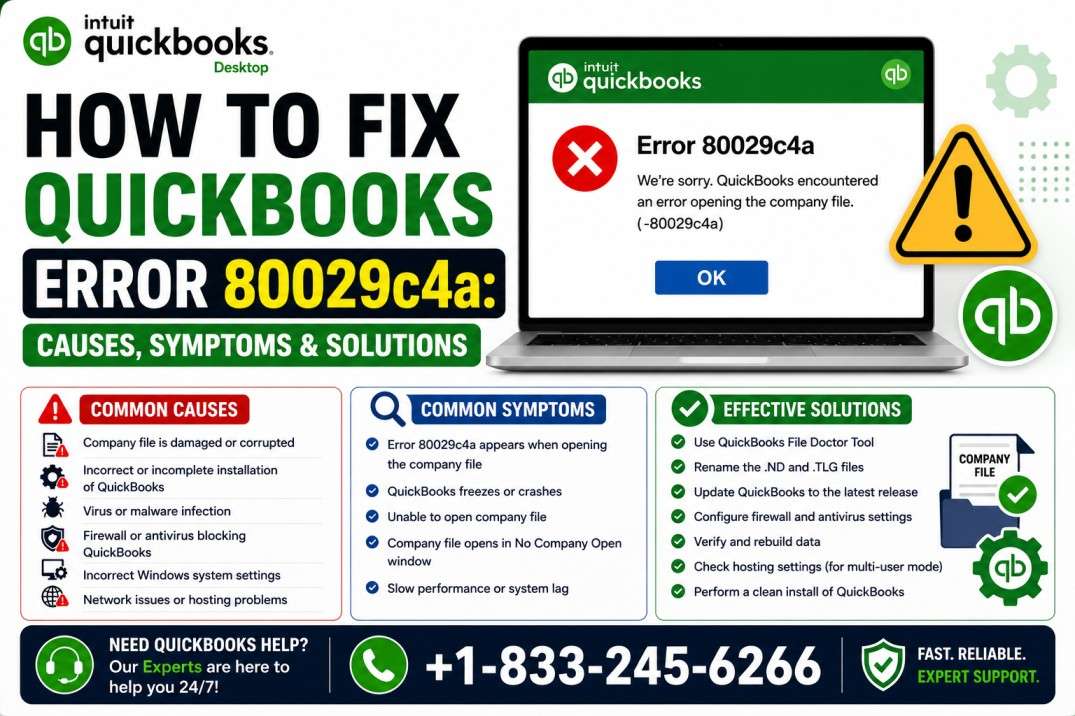
QuickBooks Desktop is widely used by businesses to manage accounting, bookkeeping, payroll, invoices, and financial records. While the software is designed to work reliably, users can occasionally encounter technical errors that prevent the application from opening.
QuickBooks Error 80029c4a is a common runtime error that may appear when QuickBooks Desktop cannot load an essential program file or DLL component. When this happens, QuickBooks may fail to launch, freeze during startup, or display an error message related to loading a system component.
The problem can be caused by damaged QuickBooks files, antivirus interference, outdated software, Windows component issues, or an incomplete installation.
In this guide, QB Enterprise Advisors explains what QuickBooks Error 80029c4a means, why it occurs, and how you can troubleshoot it.
What Is QuickBooks Error 80029c4a?
QuickBooks Error 80029c4a is generally a runtime error associated with missing, damaged, or inaccessible QuickBooks program files.
You may see an error message similar to:
Error Code: 80029c4a – Error loading type library/DLL.
When QuickBooks cannot load the required DLL or another system component, the application may fail to start properly.
The error is usually related to the QuickBooks program installation rather than the company file itself. However, you should still back up your company data before performing advanced troubleshooting.
What Causes QuickBooks Error 80029c4a?
Several factors can cause QuickBooks to have difficulty loading its required components.
Common causes include:
- Damaged or missing QuickBooks program files.
- An incomplete QuickBooks installation or update.
- Antivirus software incorrectly quarantining QuickBooks files.
- Firewall restrictions.
- Corrupted Windows system components.
- Problems with Microsoft .NET Framework, MSXML, or Visual C++ components.
- An outdated version of QuickBooks Desktop.
- An outdated Windows operating system.
- Malware or other unwanted software damaging application files.
- Incorrectly registered QuickBooks DLL or OCX components.
- A damaged QuickBooks installation.
Knowing the likely cause can help you choose the most appropriate solution.
Symptoms of QuickBooks Error 80029c4a
You may be experiencing Error 80029c4a if:
- QuickBooks fails to open.
- An error message appears immediately after launching QuickBooks.
- QuickBooks freezes during startup.
- QuickBooks closes unexpectedly.
- The software reports an error loading a DLL or system component.
- The problem began after an update or software installation.
- Your antivirus program recently quarantined a QuickBooks file.
- QuickBooks worked previously but suddenly stopped launching.
If the problem started immediately after a security-software scan, check your antivirus quarantine history before making major changes to QuickBooks.
What to Do Before Troubleshooting
Before repairing or reinstalling QuickBooks, protect your company data.
We recommend that you:
- Create a backup of your QuickBooks company file if you can access it.
- Keep your QuickBooks license and product information available.
- Make sure you have Windows administrator access.
- Close QuickBooks and other applications.
- Check whether your antivirus recently blocked a QuickBooks file.
- Avoid deleting QuickBooks program files manually.
Once your data is backed up, start with the simpler solutions below.
How to Fix QuickBooks Error 80029c4a
Solution 1: Restart Your Computer
A simple system restart can resolve temporary conflicts between QuickBooks and Windows.
Follow these steps:
- Close QuickBooks.
- Save your work in other applications.
- Restart your computer.
- Wait until Windows completely loads.
- Open QuickBooks Desktop again.
If QuickBooks opens normally, the issue may have been caused by a temporary background process.
If the error returns, continue with the next solution.
Solution 2: Run QuickBooks as an Administrator
Windows permissions can sometimes prevent QuickBooks from accessing required files.
Try opening QuickBooks with administrator privileges:
- Close QuickBooks.
- Right-click the QuickBooks Desktop icon.
- Select Run as administrator.
- Click Yes when Windows asks for permission.
- Try opening your company file.
If QuickBooks launches successfully, permissions may have contributed to the problem.
Solution 3: Update QuickBooks Desktop
An outdated QuickBooks installation may contain bugs or compatibility problems that cause runtime errors.
If QuickBooks opens:
- Select Help.
- Choose Update QuickBooks Desktop.
- Open the Update Now tab.
- Select Reset Update if necessary.
- Click Get Updates.
- Wait for the update to finish.
- Restart QuickBooks.
- Install the available updates when prompted.
If QuickBooks won’t open, you may need to use another troubleshooting method or obtain the appropriate update through official Intuit resources.
Keeping QuickBooks updated can help resolve known program and compatibility issues.
Solution 4: Check Your Antivirus Quarantine
Antivirus software can sometimes incorrectly identify legitimate QuickBooks components as suspicious.
If an essential QuickBooks executable or DLL has been quarantined, the program may fail to launch and display Error 80029c4a.
Check your antivirus software’s Quarantine, Blocked Items, or similar section.
Look for QuickBooks-related files that were recently blocked.
If you confirm that a legitimate QuickBooks file was incorrectly quarantined, restore it according to your antivirus software’s procedures and add the appropriate QuickBooks application or folder to its trusted list.
Common QuickBooks files may include:
QBW32.exeQBDBMgrN.exeQBLaunch.exeQBUpdate.exeQBCFMonitorService.exe
The exact files can vary depending on your QuickBooks version and configuration.
Do not restore a file simply because its name contains “QB.” Confirm that the file belongs to your legitimate QuickBooks installation.
Solution 5: Review Firewall Settings
A firewall may restrict QuickBooks from communicating with required services or accessing certain network resources.
Review your firewall configuration and ensure that legitimate QuickBooks applications are permitted as required.
If your business uses a managed firewall or network security system, contact your IT administrator.
Avoid permanently disabling your firewall. Security protections should remain enabled after troubleshooting.
Solution 6: Use QuickBooks Tool Hub
QuickBooks Tool Hub is a troubleshooting utility that provides several tools for addressing common QuickBooks Desktop problems.
One of the useful options for program-related issues is Quick Fix My Program.
To use it:
- Close QuickBooks Desktop.
- Open QuickBooks Tool Hub.
- Select Program Problems.
- Choose Quick Fix My Program.
- Allow the utility to complete its process.
- Reopen QuickBooks.
- Check whether Error 80029c4a has been resolved.
Quick Fix My Program can close QuickBooks background processes and address certain program-level problems.
Solution 7: Run the QuickBooks Install Diagnostic Tool
If the problem is caused by damaged installation components, the QuickBooks Install Diagnostic Tool may help.
You can access this utility through QuickBooks Tool Hub.
General steps include:
- Open QuickBooks Tool Hub.
- Select Installation Issues.
- Choose QuickBooks Install Diagnostic Tool.
- Start the diagnostic process.
- Allow the tool to scan your QuickBooks installation.
- Wait for the process to finish.
- Restart your computer.
- Open QuickBooks again.
The tool is designed to identify and repair certain installation-related issues involving QuickBooks and supporting Windows components.
Solution 8: Run the QuickBooks Reboot.bat File
QuickBooks installations may include a file called reboot.bat that can re-register certain QuickBooks-related DLL and OCX components.
If this file exists in your installation folder, it may help resolve problems caused by incorrectly registered components.
To run it:
- Close QuickBooks.
- Right-click your QuickBooks Desktop shortcut.
- Select Open file location.
- Locate
reboot.bat. - Right-click the file.
- Select Run as administrator.
- Allow the command window to complete its process.
- Restart your computer.
- Open QuickBooks.
Do not interrupt the process while the script is running.
If reboot.bat isn’t present, don’t download a similarly named file from an unknown website.
Solution 9: Update Windows
QuickBooks relies on several Windows components. An outdated operating system can contribute to application compatibility problems.
To check for updates:
- Open Windows Settings.
- Go to Windows Update.
- Select Check for updates.
- Install appropriate available updates.
- Restart your computer.
- Try launching QuickBooks again.
If your QuickBooks version is older, verify that it is compatible with your Windows version before making major operating-system changes.
Solution 10: Repair QuickBooks Desktop
If QuickBooks program files are damaged, repairing the installation may resolve Error 80029c4a without requiring a complete reinstall.
To repair QuickBooks:
- Close QuickBooks.
- Open the Windows Control Panel.
- Select Programs and Features.
- Locate QuickBooks Desktop.
- Select the Repair or Change option if available.
- Follow the instructions displayed by the installation wizard.
- Allow the repair process to finish.
- Restart your computer.
- Open QuickBooks again.
A repair replaces or restores certain program components while generally leaving your company data intact.
Even so, having a current backup is strongly recommended.
Solution 11: Scan Your Computer for Malware
Malware can damage, modify, or delete application files.
If Error 80029c4a appeared unexpectedly and other applications are also behaving strangely, run a scan using a reputable security program.
Perform a full system scan and remove confirmed threats according to your security software’s recommendations.
After the scan:
- Restart your computer.
- Open QuickBooks.
- Check whether the error remains.
Never download unofficial DLL files from random websites as a replacement for damaged QuickBooks components. Such files can introduce additional security risks.
Solution 12: Repair Windows System Files
If QuickBooks program files appear healthy but Windows itself has damaged components, Windows system-repair utilities may help.
For example, Windows provides built-in tools such as System File Checker that can scan and repair certain system files.
If you’re comfortable using Windows administrative tools, you can run the appropriate system-repair command from an elevated Command Prompt.
Because Windows system commands can affect the operating system, users who are unfamiliar with them should consider getting assistance rather than entering commands from untrusted websites.
Solution 13: Perform a Clean Installation of QuickBooks
If Error 80029c4a continues after repairing QuickBooks, a clean installation may be necessary.
A clean installation removes the existing QuickBooks program components and installs a fresh copy.
Before starting:
- Back up your company file.
- Keep your QuickBooks license information available.
- Confirm the QuickBooks version you need.
- Close QuickBooks.
- Make sure you have the appropriate installer.
General process:
- Uninstall QuickBooks Desktop through Windows.
- Restart the computer.
- Use the appropriate QuickBooks clean-install procedure.
- Rename or remove only the program folders specified by the procedure.
- Reinstall QuickBooks.
- Enter your product and license information.
- Activate QuickBooks.
- Download the latest available updates.
- Open your company file.
- Test QuickBooks again.
A clean installation should be performed carefully because QuickBooks folders can contain important information.
Solution 14: Check QuickBooks Installation Folders
If security software or another program has modified your QuickBooks installation, check whether essential program files are still present.
QuickBooks is commonly installed under an Intuit folder within Program Files, although the exact location depends on the product and Windows configuration.
Don’t delete files manually just because they appear unfamiliar.
If you’re unsure whether a file belongs to QuickBooks, get professional assistance before removing it.
QuickBooks Error 80029c4a on Startup
When Error 80029c4a appears immediately after launching QuickBooks, the problem is usually related to the program installation or one of the components QuickBooks needs to load.
Start with these steps:
- Restart the computer.
- Run QuickBooks as administrator.
- Check antivirus quarantine.
- Update QuickBooks if possible.
- Run Quick Fix My Program.
- Run the Install Diagnostic Tool.
- Try the
reboot.batutility if available. - Repair QuickBooks.
- Perform a clean installation if necessary.
This approach lets you move from simple fixes to more advanced repairs without immediately reinstalling the entire program.
How to Prevent QuickBooks Error 80029c4a
Although runtime errors cannot always be prevented, regular maintenance can reduce the likelihood of encountering them.
Follow these best practices:
- Keep QuickBooks Desktop updated.
- Keep Windows properly maintained.
- Keep your antivirus software updated.
- Configure security software to recognize legitimate QuickBooks components.
- Back up your company file regularly.
- Avoid downloading unofficial QuickBooks DLL files.
- Don’t interrupt QuickBooks updates or installations.
- Use supported versions of QuickBooks and Windows.
- Run periodic malware scans.
- Avoid manually deleting QuickBooks program files.
- Maintain adequate free disk space.
When Should You Contact a QuickBooks Professional?
You should consider professional assistance if Error 80029c4a continues after the standard troubleshooting steps.
Expert help may be useful when:
- QuickBooks won’t open at all.
- The error returns after a clean installation.
- Your antivirus repeatedly quarantines QuickBooks files.
- You suspect Windows system-file damage.
- You are unsure which QuickBooks files can safely be modified.
- Your company file is important and you want to minimize the risk of data loss.
- Multiple QuickBooks users or computers are experiencing the same problem.
Avoid making repeated changes to the installation without a backup.
Get Help With QuickBooks Error 80029c4a
QuickBooks Error 80029c4a can be frustrating because it may prevent QuickBooks Desktop from launching properly. The problem is commonly associated with damaged or missing program components, antivirus interference, outdated software, Windows issues, or an incomplete installation.
Start with basic troubleshooting such as restarting your computer, checking security software, and updating QuickBooks. If the error remains, QuickBooks Tool Hub, the Install Diagnostic Tool, reboot.bat, program repair, or a clean installation may help.
If you need professional assistance, QB Enterprise Advisors can help troubleshoot QuickBooks Desktop errors and related software problems.
Call QB Enterprise Advisors at 833-245-6266 for help with QuickBooks Error 80029c4a and other QuickBooks issues.
Frequently Asked Questions
What is QuickBooks Error 80029c4a?
QuickBooks Error 80029c4a is a runtime error that can occur when QuickBooks Desktop cannot load a required DLL or other program component.
Why does QuickBooks Error 80029c4a occur?
Common causes include damaged QuickBooks files, antivirus interference, outdated software, Windows component problems, incorrectly registered DLL files, and incomplete installations.
Can antivirus software cause Error 80029c4a?
Yes. Antivirus software may occasionally quarantine or block legitimate QuickBooks components, preventing the program from launching.
Can QuickBooks Tool Hub fix Error 80029c4a?
QuickBooks Tool Hub includes utilities such as Quick Fix My Program and the Install Diagnostic Tool that can help address certain program and installation problems associated with runtime errors.
What does the QuickBooks Install Diagnostic Tool do?
The Install Diagnostic Tool can scan and repair certain QuickBooks installation problems and supporting Windows components.
What is the reboot.bat file in QuickBooks?
reboot.bat is a utility included with some QuickBooks installations that can re-register QuickBooks-related DLL and OCX components.
Should I download a missing QuickBooks DLL from the internet?
No. Avoid downloading DLL files from unofficial websites. Use legitimate QuickBooks repair, update, or reinstallation procedures instead.
Can reinstalling QuickBooks fix Error 80029c4a?
Yes. If the error is caused by damaged or missing program components, a clean installation can replace the affected files.
How can I get help with QuickBooks Error 80029c4a?
If you’ve tried the recommended solutions and QuickBooks still won’t open, contact QB Enterprise Advisors at 833-245-6266 for professional assistance.