
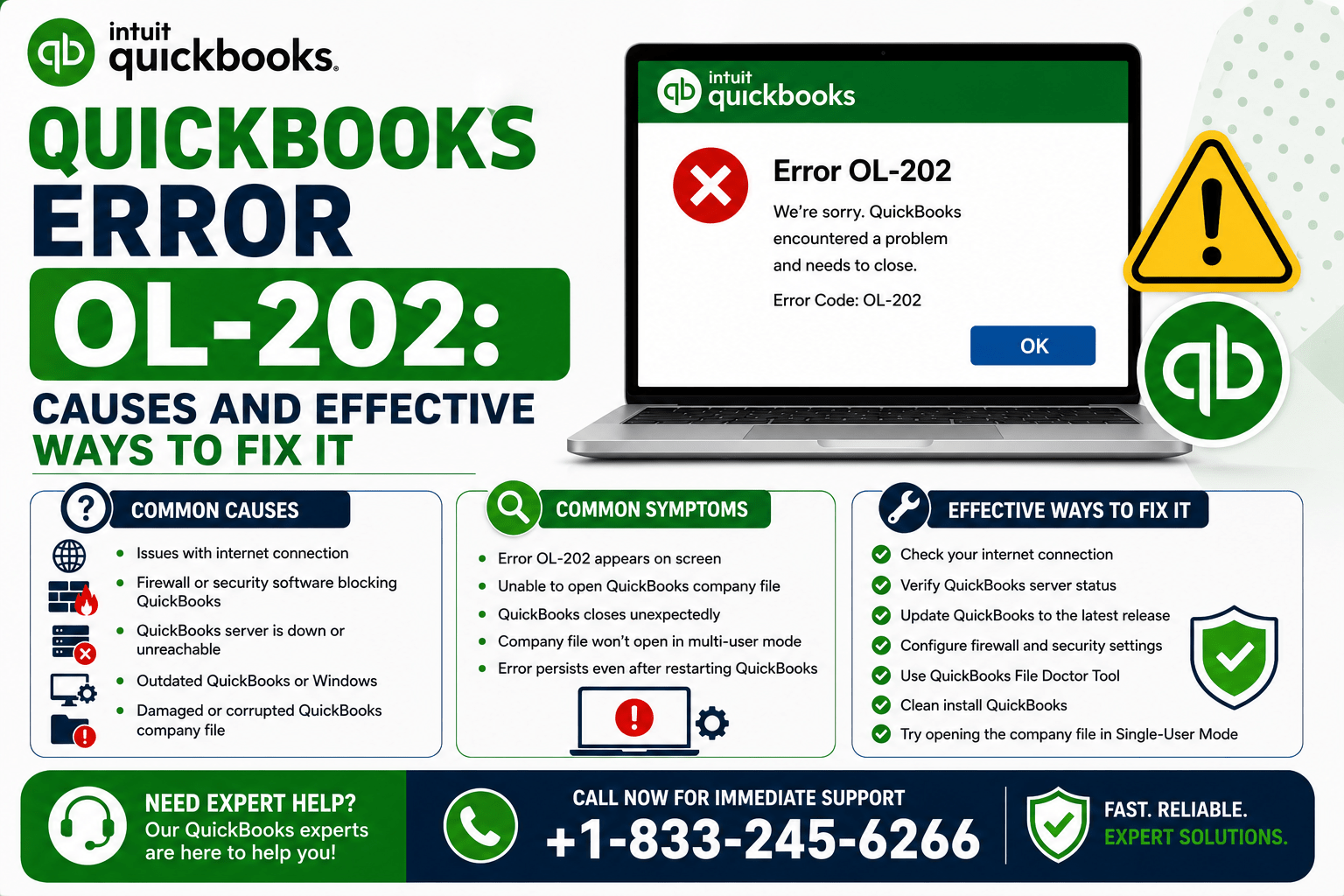
QuickBooks Desktop makes accounting easier by allowing users to connect their bank accounts and download transactions through Bank Feeds. However, problems with the banking connection can sometimes result in error messages such as QuickBooks Error OL-202.
This error is generally related to communication problems between QuickBooks Desktop and your financial institution. When it occurs, QuickBooks may be unable to connect to the bank, download transactions, or update your banking information.
Fortunately, there are several troubleshooting methods you can try to resolve the issue. In this guide, we’ll explain the possible causes, symptoms, and solutions for QuickBooks Error OL-202.
What Is QuickBooks Error OL-202?
QuickBooks Error OL-202 is a Bank Feeds error that can occur when QuickBooks Desktop has difficulty communicating with your financial institution.
The error may appear while you are trying to:
- Set up online banking.
- Connect a bank account to QuickBooks.
- Download transactions.
- Update Bank Feeds.
- Refresh an existing banking connection.
In many cases, the issue is temporary. However, if the error continues to appear, you may need to troubleshoot your QuickBooks settings and bank connection.
Common Causes of QuickBooks Error OL-202
There are several reasons why QuickBooks may display OL-202. Common causes include:
- Temporary problems with the bank’s server.
- An outdated QuickBooks Desktop version.
- Incorrect or outdated online banking credentials.
- Changes to the financial institution’s website or connection system.
- Poor or unstable internet connectivity.
- Incorrect Bank Feed settings.
- Problems with the QuickBooks company file.
- An inactive account that still has online banking enabled.
- Compatibility issues between QuickBooks and the financial institution.
- Temporary maintenance or service interruptions at the bank.
Identifying the cause can make troubleshooting easier and help prevent the problem from returning.
Symptoms of QuickBooks Error OL-202
When OL-202 occurs, you may notice one or more of these symptoms:
- QuickBooks cannot connect to your bank.
- Bank transactions fail to download.
- The Bank Feeds process stops unexpectedly.
- QuickBooks displays an OL-202 error message.
- Banking information does not update.
- QuickBooks repeatedly asks you to reconnect your account.
- Online banking functions do not work as expected.
If you experience these issues, try the solutions below.
How to Fix QuickBooks Error OL-202
Solution 1: Check Your Bank’s Website
The first thing you should do is verify that your bank’s website is working properly.
Open your financial institution’s official website and sign in with your online banking credentials.
Check for:
- Service outages.
- Maintenance notifications.
- Security alerts.
- Messages requiring your attention.
- New terms and conditions.
- Changes to your login process.
If you cannot access the bank’s website, the issue may be on the bank’s side. Wait until the service is restored before trying to connect QuickBooks again.
Solution 2: Verify Your Banking Credentials
Incorrect login information can prevent QuickBooks from establishing a Bank Feed connection.
Log in directly to your bank’s website and confirm that your username and password work.
If you recently changed your banking password, update the credentials used by QuickBooks as well.
Also check whether your bank requires additional security verification, such as a one-time code or two-factor authentication.
Solution 3: Update QuickBooks Desktop
An outdated QuickBooks installation can cause compatibility problems with financial institutions.
To update QuickBooks Desktop:
- Open QuickBooks.
- Click Help.
- Select Update QuickBooks Desktop.
- Open the Update Now tab.
- Click Get Updates.
- Wait for the update to complete.
- Restart QuickBooks.
- Try Bank Feeds again.
Regular updates help keep QuickBooks compatible with changing banking services.
Solution 4: Check Your Internet Connection
QuickBooks requires a stable internet connection to communicate with your financial institution.
If your connection is unreliable, try:
- Opening a web browser.
- Visiting several websites.
- Confirming that the connection is stable.
- Restarting your router if necessary.
- Disconnecting from a VPN temporarily, if applicable.
- Reopening QuickBooks.
You should also check your firewall and security software to make sure QuickBooks is permitted to access the internet.
Solution 5: Deactivate and Reconnect Bank Feeds
If your existing Bank Feed connection has become outdated or corrupted, deactivating and reconnecting the account may help.
Before making changes, create a backup of your QuickBooks company file and review any pending downloaded transactions.
Then:
- Open the affected bank account.
- Go to the Bank Feed settings.
- Deactivate online banking.
- Save the changes.
- Close QuickBooks Desktop.
- Reopen QuickBooks.
- Return to the affected account.
- Set up Bank Feeds again.
- Search for your financial institution.
- Enter your current banking credentials.
- Connect the bank account to the correct QuickBooks account.
After reconnecting the account, check whether transactions download successfully.
Solution 6: Check Inactive Accounts
An inactive account with Bank Feeds still enabled can sometimes cause banking-related problems.
To review inactive accounts:
- Open QuickBooks Desktop.
- Go to Company.
- Select Chart of Accounts.
- Choose Include Inactive.
- Review your inactive accounts.
- Look for accounts that still have online banking enabled.
- Edit the appropriate account.
- Disable online banking if it is no longer needed.
- Save your changes.
- Restart QuickBooks.
Then try connecting your active bank account again.
Solution 7: Check for Bank Service Changes
Financial institutions periodically update their online banking systems and security requirements.
If your bank recently changed its website, login procedure, authentication process, or Bank Feed connection method, QuickBooks may temporarily experience connection problems.
Visit your bank’s website and look for information about recent changes.
If your financial institution has changed its connection method, follow the bank’s recommended instructions for reconnecting QuickBooks.
Solution 8: Test the Connection in a New Company File
If QuickBooks Error OL-202 continues to appear, test the bank connection in a new company file.
The purpose of this test is to determine whether the problem is related to your existing company file.
Create a temporary QuickBooks company file and attempt to connect the same financial institution.
If the connection works in the new company file, the issue may be related to your original company file or its Bank Feed configuration.
If OL-202 appears in the new company file as well, the problem may be associated with QuickBooks, your bank, or the connection between them.
What If QuickBooks Error OL-202 Is Still Not Fixed?
If the error continues after trying the troubleshooting methods above, avoid making unnecessary changes to your company file.
Instead, determine whether the problem is isolated to:
- One bank account.
- Multiple accounts.
- One QuickBooks company file.
- Multiple company files.
- Your computer or internet connection.
- The financial institution.
You should also verify that QuickBooks is updated and that your bank’s website is operating normally.
If the problem occurs across multiple company files, contacting your financial institution may be helpful because the issue could be related to its online banking service.
How to Prevent QuickBooks OL-202 in the Future
Although Bank Feed errors cannot always be prevented, a few practices can reduce the likelihood of encountering them.
Keep QuickBooks Updated
Install QuickBooks Desktop updates regularly to maintain compatibility with financial institutions.
Monitor Bank Notifications
Watch for messages from your bank about security updates, maintenance, login changes, or modifications to online banking services.
Maintain Company File Backups
Regular backups provide protection before you change Bank Feed or company-file settings.
Review Bank Accounts Regularly
Remove unnecessary online banking connections and review inactive accounts to keep your QuickBooks banking setup organized.
Frequently Asked Questions
What does QuickBooks Error OL-202 mean?
QuickBooks Error OL-202 generally indicates a problem communicating between QuickBooks Desktop and a financial institution through Bank Feeds.
Why is QuickBooks unable to connect to my bank?
The issue can be caused by bank-server problems, outdated QuickBooks software, incorrect credentials, internet issues, changes to the bank’s online banking system, or incorrect Bank Feed settings.
Can updating QuickBooks fix OL-202?
Yes. If the error is caused by outdated software or a compatibility issue, updating QuickBooks may resolve the problem.
Should I deactivate and reconnect my bank account?
Deactivating and reconnecting Bank Feeds can help if the existing connection is outdated or damaged. Create a company-file backup before making significant changes.
Can my bank’s server cause OL-202?
Yes. Temporary outages, maintenance, security changes, or updates to the bank’s online banking system can prevent QuickBooks from connecting successfully.
How can I get help with QuickBooks Error OL-202?
If the recommended troubleshooting steps do not resolve the problem, professional QuickBooks support can help identify the cause and guide you through the appropriate solution.
Conclusion
QuickBooks OL-202 can interrupt your Bank Feeds and prevent QuickBooks Desktop from communicating properly with your financial institution. Fortunately, the issue can often be resolved by checking the bank’s website, verifying your credentials, updating QuickBooks, checking your internet connection, and reconnecting the affected bank account.
If the error continues, testing the connection in a new company file can help determine whether the problem is related to your company data or the banking connection.
For additional assistance with QuickBooks Error OL-202, contact QB Enterprise Advisors at 833-245-6266.
QB Enterprise Advisors Support Number: 833-245-6266